

Resource Tree adds folder navigation to Minecraft's resource pack screen, so you can organize your packs into subfolders instead of scrolling through one massive list.

📁 Features
🌿 Folder Navigation
- Subfolders inside your
resourcepacksdirectory automatically appear in the resource pack screen - Click the → arrow or double-click a folder to navigate into it
- A ← Back entry appears at the top so you can navigate back up
- Each folder shows a pack count next to
<Folder>indicating how many packs are directly inside
🎨 Folder Options
- Right-click any folder to open a context menu
- Pick from 6 colors to color-code your folders: Default, Red, Blue, Green, Purple, and White
- Colors are saved and persist across game restarts
- Rename a folder directly inline
- Delete a folder (with confirmation if it contains files)

✅ Enable / Disable All
- Right-click a folder and click Enable All → to move all packs inside it to Selected at once
- Click Disable All ← to move them all back to Available
- Only affects packs directly inside that folder — nested subfolders are not affected
➕ New Folder
- Click the
+button next to the≡button to create a new folder in the current directory - Instantly enters rename mode so you can name it right away

📊 Advanced Sorting ▫️NEW▫️
- Click the
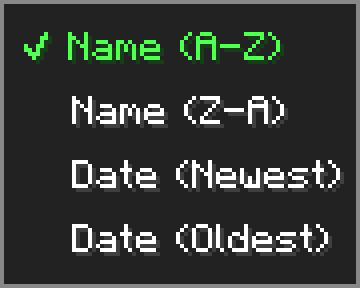
⇅button next to the search bar to open the sort menu - Sort your packs by Name (A-Z), Name (Z-A), Date (Newest), or Date (Oldest)
- Sort setting is saved and persists across game restarts
- Folders always stay pinned to the top regardless of sort mode
🖱️ Drag & Drop ▫️NEW▫️
- Hold and drag any resource pack from the available list to move it into a folder
- A ghost preview follows your cursor while dragging
- Hover over a folder to highlight it as a drop target — release to move the pack inside
- Drag onto the ← Back entry to move a pack up one folder level
- Shift+left-click any resource pack to instantly move it to the Selected list
⚙️ Options Menu
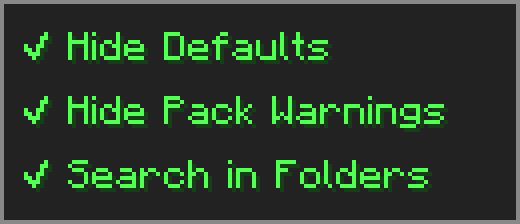
Click the ≡ button next to "Open Pack Folder" to open the options menu.
- Hide Defaults — hides High Contrast and Programmer Art from the available list
- Hide Pack Warnings — hides the red warning color on outdated resource packs
- Search in Folders — makes the search box look inside subfolders too
🔧 Compatibility
-
⚠️ Essential — dragging packs from Available to Selected may behave unexpectedly — use the arrow button or shift+click instead.
-
➕ Resourcify — works great for browsing and installing packs directly in-game.
External resources
Project members
Naw7
Member
Technical information
License
MIT
Client side
required
Server side
unsupported
Project ID